Pillow Saves Fewer GIF Frames Than You Supplied: Verify the Hold Time
Write two GIFs with the same requested delays, inspect the stored frames, and separate visual hold time from the count of input images.
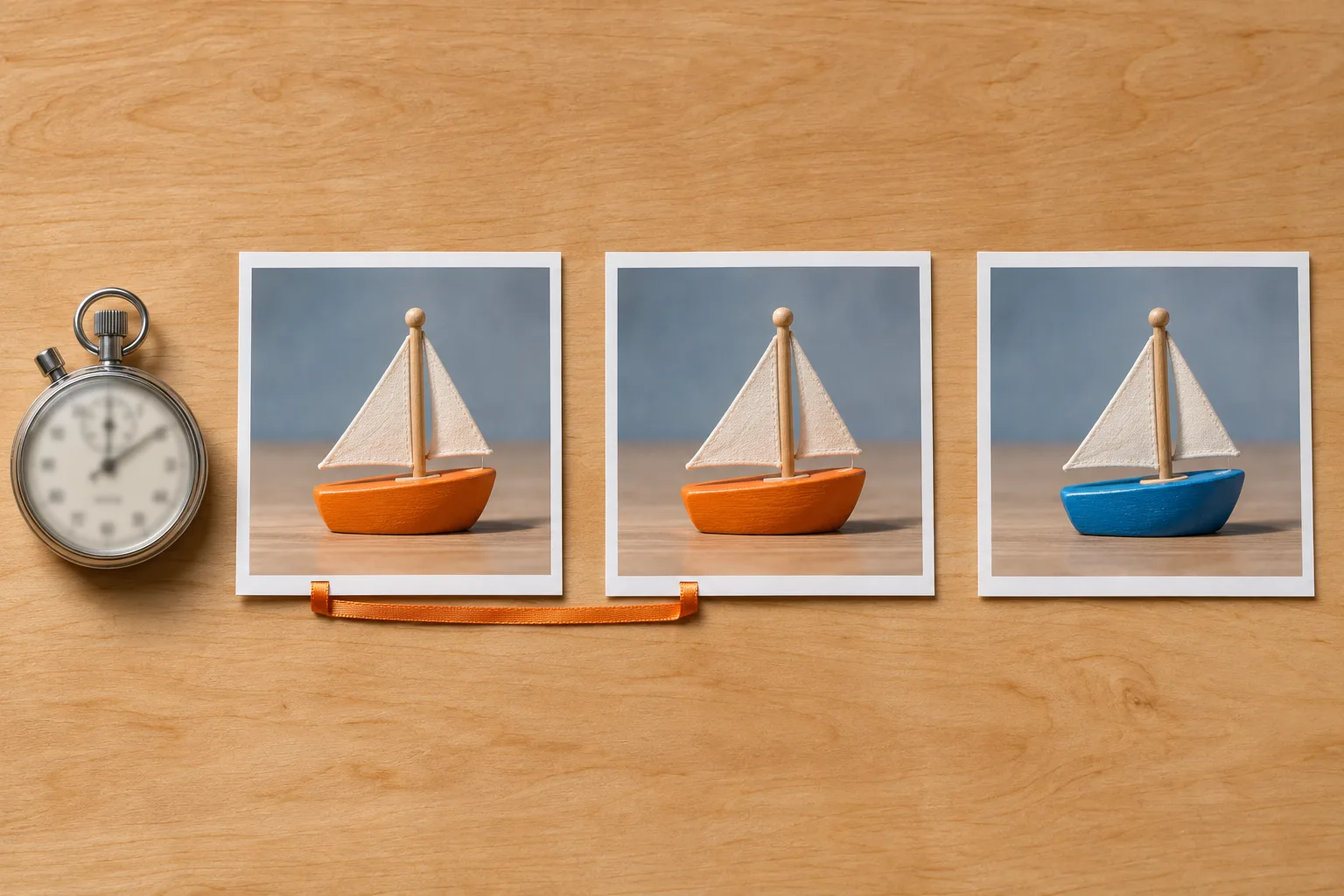
The input list had three images. The saved GIF had two frames. Reopening the file explained where the missing entry went. Its first orange frame had a delay of 160 milliseconds, the sum of two requested delays of 70 and 90. The blue frame still had its requested delay of 120 milliseconds. For this fixture, the file preserved 280 milliseconds of stored delays while changing how many records represented that time.
The comparison file uses the same two colors and the same delay list. It places blue between the two orange images. When we opened that file, all three delays remained separate. That makes the two files useful when a project has to decide whether it cares about a picture staying visible or about every input position becoming a separately addressable GIF frame.
Compare the records in the two saved files
Start with the artifact that your application will actually read. In the local run, `repeated.gif` returned a 6 by 4 image, a loop value of 0, and two records when read with Pillow. The first record reported 160 milliseconds and an RGB sample of `[255, 120, 0]`. The second reported 120 milliseconds and a sample of `[0, 50, 200]`. These are the orange and blue values placed into the fixture. The code checks the pixel at the upper-left corner of each decoded frame.
The other file, `distinct-neighbors.gif`, has the same dimensions and loop value. Its decoded samples are orange, blue, and orange. Their stored delays are 70, 90, and 120 milliseconds in that order. The same orange color appears twice in the file because those two occurrences are separated by blue. This comparison gives a more specific explanation than saying that an exporter drops duplicate colors wherever they appear. In the original run, adjacency was what changed between the two sequences.
Both sets of stored delays sum to 280 milliseconds. They do not describe the same color timeline. In `repeated.gif`, the orange state occupies the first 160 milliseconds of the stored sequence and blue occupies the remaining 120. In the alternating file, blue has the middle 90 milliseconds and orange returns for the final 120. The second file is a comparison case, not a replacement animation with the same content. That difference is important if someone proposes reordering input images merely to restore the expected frame count.
The Pillow GIF writer can accumulate the delay of a frame that has no difference from the preceding image. Pillow 12.3.0 GIF writer
The loop value is metadata and is not included when adding delays for one pass through the stored frames. The code saves both files with `loop=0` and records that value from the reader. There was no display or stopwatch measurement. The original tool read file contents and reported the delays that it found. If your problem is that an animation appears faster or slower in a particular application, use this inspection to establish what the file requests and measure that application's playback separately.
Reproduce the comparison with two solid colors
The script creates two small RGB image objects using `Image.new`. It makes the orange duplicate with `orange.copy()`, so the duplicate is another image object with the same pixel content. Using a copy is helpful in a regression because it shows that giving the writer two distinct Python objects does not in itself establish two different visual states. The input sequence is small enough that someone can trace the expected delay at every position without examining photographs or drawing commands.
To make the adjacent case, pass the sequence orange, orange copy, and blue. To make the alternating case, pass orange, blue, and orange copy. Each is saved in its own file with `save_all=True`. The first image is the receiver of `save`, and the other two are passed through `append_images`. The durations are specified as `[70, 90, 120]` in both calls. The position in the input sequence selects the requested delay. Moving blue from the third to the second position deliberately gives it a different requested delay.
The script keeps the save settings the same between the two cases, including `optimize=False`. This lets the output demonstrate the effect even with that option disabled. It does not compare other optimization settings. In particular, the fixture does not tell you whether a particular palette size or file size will be obtained by toggling the option. If those are important in your own project, keep timing and palette decisions as separate comparisons.
Use a fresh directory when running the script. It creates the output directory itself and writes the two GIFs and `decoded.json` inside it. Keeping both files from the same run helps avoid a common comparison mistake. If an earlier export remains at one path, inspecting it alongside a new export can make a change look like the effect of one setting when the files were produced by different code. Retain the names and the actual options together with the probe report.
Use the image reader to observe stored timing
The inspection function opens one file at a time inside a context manager. It reads `n_frames`, then visits each index with `seek(index)`. After moving to the index, it reads the current `duration` value from the image information and converts the current image to RGB for the sample. Reading the duration inside the loop matters because each index can have its own delay. If you inspect only the information for the first frame, you can miss the second state even when its requested hold time is part of the problem.
The function uses an explicit key lookup for duration because the fixture expects every saved frame to supply it. A general reader for files from other tools might have to decide how to report missing timing data. Avoid silently replacing a missing delay with a value and then claiming that it came from the file. For a diagnostic report, you can keep a distinction between a delay read from the artifact and a default applied by the application. A test can then show which branch handled an input without relying on observed playback.
The RGB sample gives the delay a visible meaning in these solid images. If the code only compared the array `[160, 120]`, a file with the colors in the wrong order could still pass. A single sample is sufficient to distinguish the two test colors at that point, but it does not compare every pixel of a general animation. The earlier example of comparing decoded image samples uses PNG and defines its own identity contract. Here the GIF reader checks one known sample and a stored delay per frame, which answers a different question.
The original script makes four explicit assertions. Two compare the complete delay arrays, and two compare the ordered lists of RGB samples. Their lengths also show how many frame records were traversed. The report retains the size and loop value for inspection. The code does not assert a file size target or run a player. The two files and the report are preserved alongside the script, so a reviewer can distinguish what was written, what was observed, and what the verification required.
gif_duration.py
"""Inspect stored GIF frames and delays after Pillow writes an input sequence."""
import json
from pathlib import Path
import sys

from PIL import Image


def inspect(path):
    with Image.open(path) as image:
        frames = []
        for index in range(image.n_frames):
            image.seek(index)
            frames.append({'delay_ms': image.info['duration'],
                           'sample_rgb': list(image.convert('RGB').getpixel((0, 0)))})
        return {'size': list(image.size), 'loop': image.info['loop'], 'frames': frames}


def experiment(root):
    root = Path(root).resolve()
    root.mkdir()
    orange = Image.new('RGB', (6, 4), (255, 120, 0))
    blue = Image.new('RGB', (6, 4), (0, 50, 200))
    results = {}
    for name, frames in {'repeated.gif': [orange, orange.copy(), blue],
                         'distinct-neighbors.gif': [orange, blue, orange.copy()]}.items():
        path = root / name
        frames[0].save(path, save_all=True, append_images=frames[1:],
                       duration=[70, 90, 120], loop=0, optimize=False)
        results[name] = inspect(path)
    merged = results['repeated.gif']['frames']
    distinct = results['distinct-neighbors.gif']['frames']
    assert [frame['delay_ms'] for frame in merged] == [160, 120]
    assert [frame['delay_ms'] for frame in distinct] == [70, 90, 120]
    assert [frame['sample_rgb'] for frame in merged] == [[255, 120, 0], [0, 50, 200]]
    assert [frame['sample_rgb'] for frame in distinct] == [[255, 120, 0], [0, 50, 200], [255, 120, 0]]
    (root / 'decoded.json').write_text(json.dumps(results, indent=2), encoding='utf-8')
    return results


if __name__ == '__main__':
    print(json.dumps(experiment(sys.argv[1]), indent=2))
Recorded local check: Four explicit assertions. Pillow12.3.0, Python3.12.3 Windows. RGB 6×4 solid orange (255,120,0) and blue (0,50,200); distinct copies for repeated orange. Requested70/90/120ms, loop=0, optimize=False. Adjacent [orange,orange,blue] -> 2 stored frames with160/120; alternating [orange,blue,orange] -> 3 stored frames70/90/120. Both totals280ms as stored, same size, loop0. Color checked at (0,0) after RGB conversion only. No playback, physical timing, transparent/disposal/composite test, quantization test, encoder quality or model footage. Do not claim optimize=False forces no merge, or visually similar nonidentical inputs are merged.; environment: Python 3.12.3 Windows; Pillow 12.3.0
Read the behavior in the version that wrote the file
The experiment used Pillow 12.3.0 and Python 3.12.3 on Windows on November 10, 2026. The source for that version checks a frame against the preceding image. If the comparison supplies no changed region, it can add the incoming delay to the previous saved record and skip writing another frame. The two orange inputs in the adjacent case are deliberately identical, so the recorded 160 milliseconds is consistent with that branch. The alternating case retains each visible change.
This explains why `optimize=False` was insufficient to obtain one stored frame for every supplied object. The adjacent case still merged in the measured setup. The option should not be used as a promise about the number of records. Inspect the actual output if that number is a requirement. If you update Pillow or use another writer, repeat a small comparison with the exact options that your application uses. Save the writer version together with the result.
Do not convert the result into a rule that every similar-looking image will merge. A viewer's impression of similarity is different from the writer's comparison. Likewise, a small deliberate change can interact with the representation the writer prepares before it compares frames. The fixture did not test small differences, palettes with transparency, disposal settings, or particular viewers. If an adaptation depends on retaining a marker, make a fixture that actually contains that marker and inspect it after writing.
Delay precision is a separate question. The fixture chose multiples of 10 milliseconds and reports exactly the values it read back. It did not test what happens when a duration falls between representable increments or when a player applies a timing policy. If your project requires a delay such as 75 milliseconds, test it with its own tiny fixture. Record the requested value and the stored value before assessing a player. That way a difference in playback cannot be mistaken for a difference that was already present in the file.
Decide what “hold the image” means in the project
If the intent is to hold one visible state for a while, represent that intent before handing a list to the writer. For example, a project could describe orange for 160 milliseconds followed by blue for 120. A short list that names the two states and their delays is easier to review than a list of repeated orange objects whose purpose has to be inferred. If you adopt that representation, make a comparison file with explicit delays and inspect it. The original experiment shows what happened when the writer combined two requests. It did not save and compare a separate explicit hold file.
Some editors use repeated frames as beats for editing, even when there is no visible change. Suppose a project stores two checkpoints during the orange portion of a tutorial animation. The GIF can represent the orange hold as one stored frame. That frame does not identify the two editing checkpoints. If checkpoints are needed later, keep them in the project timeline with their own identifiers or times. A consumer reading only the GIF cannot infer that one 160-millisecond hold was once entered as 70 plus 90.
This separation can also clarify a review tool. A frame-by-frame reader might display “frame 1” for the blue state in the adjacent file because it indexes from zero. A source editor might have called it the third input item. Both labels can describe their respective representations. If the editor asks to jump to input item three, make the mapping explicit. Do not treat a file index as a stable editor identifier unless the export contract says it will be preserved and the test verifies it.
When the requirement actually is a record for each input position, choose a format and writer whose behavior you can verify for that purpose. You might also maintain an image sequence with a sidecar timeline. Those are alternatives to test, not conclusions from the two GIF files. Making a meaningless pixel change solely to force an extra record changes the image content and is not a reliable guarantee. If a project intentionally adds a meaningful marker, treat it as part of the design and verify that the exported reader still sees it.
Keep event timing where it can be tested on its own
An application may need to show a button, annotation, or caption after 70 milliseconds while leaving the picture unchanged. That event is not a new visual state of the GIF itself. A project timeline can record the event at a time relative to the start and keep the image asset separate. This helps the application express a decision that the GIF writer cannot infer from identical pixels. It also gives you a way to check the event schedule without counting saved frames.
The event schedule needs its own definition of what time means. If a user restarts a view, decide whether an event should happen again. If an asset loops, decide whether the annotation repeats with each pass or appears only once. If a person can pause the view, choose whether the event follows elapsed time or progress through the animation. These are application behaviors. A sum of stored delays can inform the choice, but does not establish that a separate timer remains synchronized with a particular player.
For a small local test, record the requested states and delays in a plain project fixture and compare them with the observed file records. If a separate manifest represents events, give those events explicit times. Then verify the file and manifest independently. In a richer integration, check that the application reads the artifact version that matches the event record. Otherwise an old file may be paired with new events, and a difference could be incorrectly attributed to frame merging.
If you plan to generate video from the animation later, document what the downstream step accepts. It might turn variable holds into repeated output frames at a fixed rate or treat each stored GIF frame as one input. Those choices lead to different results. Run the actual conversion path on a small file if the project depends on it. In the current experiment there was no video conversion or audio alignment check. The distinction is useful because knowing two GIF frames have 280 milliseconds of stored delays does not tell you how many frames another exporter will produce.
Verify the revision where it will be used
Start a check with the requirement the next tool actually needs. If the requirement is a 160-millisecond orange hold and a 120-millisecond blue hold in a saved GIF, read the artifact and compare the sample and delay arrays for those two states. If the requirement is a three-item editing sequence, verify the source project or a representation that retains all three items. Keeping both checks helps explain why an output can be correct for the viewer yet insufficient for editing.
When a reported delay changes, capture both the settings passed to `save` and the values returned by the reader. Check whether the inputs are adjacent duplicates before changing unrelated options. Compare the order of the input states and the order of the decoded samples. A request to “fix a missing frame” can turn into an accidental change to the story of the animation if someone moves a state just to make the reported count increase. The alternating fixture illustrates why the count and the sequence must be considered together.
A downstream application can be checked separately with the intended destination and a known file. For example, a review team could inspect whether the viewer shows the orange hold, changes to blue, and repeats as the project expects. If precise duration matters, choose a way to measure it and note the viewer version. Do not treat the local report as evidence of that playback. The only measured timing values here were the metadata read back from the original two files.
Finally, preserve the artifacts when changing the writer or the options. Keep the old and new files under different names, then compare their stored delays and the visual state samples you selected. The old file can explain why a previous test expected two entries, while the new file can demonstrate what changed. For a real project, retain a small fixture that can be shared without exposing production art. The two solid colors are enough to tell whether adjacent copies became a single hold in this environment.
Design the next fixture around the exact boundary
If you want to extend the test to several identical inputs in a row, write down which neighboring states are expected to be continuous. Include another state at the end so the boundary is visible in the output. Compare the list of stored records and the sum of delays for each run of matching input states. The sum of all delays alone would miss a case where one hold was shortened and another lengthened by the same amount. A per-state comparison gives you a way to locate the affected transition. This is a proposed extension to the two recorded files, not another result from the local run.
For a file with more than two colors, choose the verification sample deliberately. A corner that is the same background color in every frame will not distinguish changes in the middle of the image. A fixture can use multiple known sample points, or compare decoded pixels against a reviewed expected result. The important choice is which visual difference the test is meant to observe. The corner sample in the retained fixture works because every pixel in a given test input has the same color. It would be a weak comparison for a sequence with only a small changing object in the center.
If your application exposes a timeline for editing, run a test that loads the source and the export through their normal entry points. Ask the source view for its input items and the export view for its stored frames. Confirm that it is clear to a reader which count each view reports. You can include the adjacent duplicate case in the integration test without requiring the two counts to agree. The useful assertion might be that the UI labels each count correctly and shows the recorded delay when a frame is selected. The local fixture provides the expected file records for this one comparison. It does not implement a timeline interface.
If an editor later reports a missing last frame, avoid assuming this is the same case. First check whether the last input matched its immediate predecessor and whether the final stored delay reflects a hold. Then verify the output report was produced after writing the complete file. A missing distinct state deserves a different investigation from a duplicate combined with the preceding hold. Keep the input colors, requested durations, and stored observations together in the report so someone else can tell which situation actually occurred.
Prepared with AI assistance and automated review. The original fixture was run locally. The lead photograph illustrates the subject.